Private Study Portal
Help & Support
Everything about getting into the portal, staying in, and reaching a person when you need one. Five minutes here answers almost every question we're asked.
How access works
Course access follows four steps, always in this order. Use the same email address for every one of them — enrolment is matched on it.
- Payment — you complete checkout for a course.
- Identity — you verify who you are through Stripe Identity: a government photo ID plus a live selfie, on Stripe's own infrastructure. Your documents never sit on our systems.
- NDA — the method you're about to study isn't published anywhere, so every member signs a short agreement. The signing link is sent to you as a message inside the members community — never by email. Takes about a minute.
- Access — once identity and NDA match, your account here opens and your activation link is sent to you in the community.
Not in the members community yet? Join at members.skoolofforecasting.com with your enrolment email — it's where your NDA link, activation link, and all support messages arrive. Reports are different: the Year-Ahead Forecast and House of Influence need no NDA and no portal account — they're built from the details you enter on the checkout success page.
Activating your account
Your activation link opens a one-time page like this. It works once, so finish the page in one sitting.
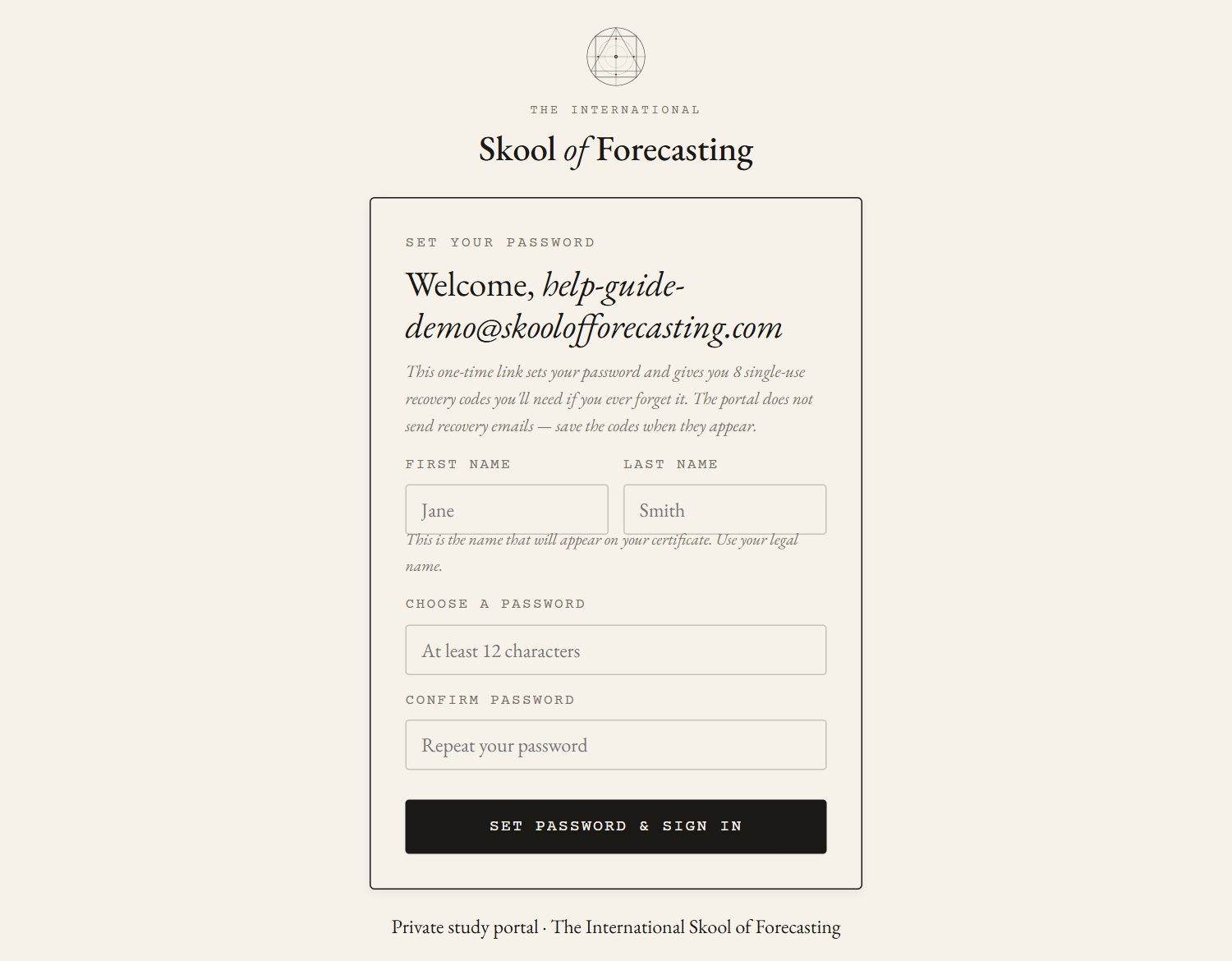
- Enter your legal name — it's the name printed on your certificate.
- Choose a password of at least 12 characters.
- Press Set password & sign in.
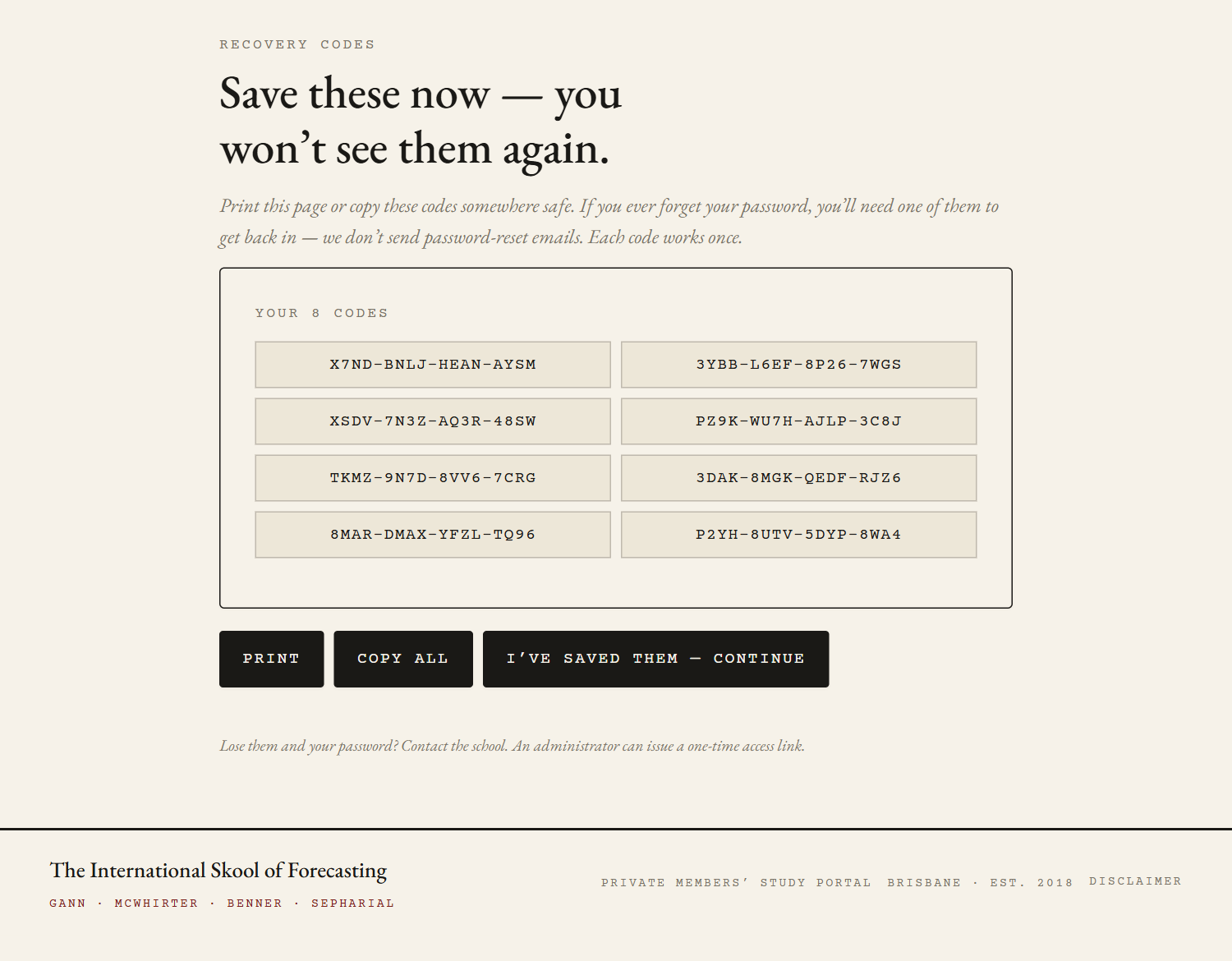
Immediately after, you'll see your 8 recovery codes — the most important screen in the whole portal. We don't send password-reset emails; these codes are how you get back in if you ever forget your password. Print them or copy them somewhere safe. Each works once.
Signing in & registering devices
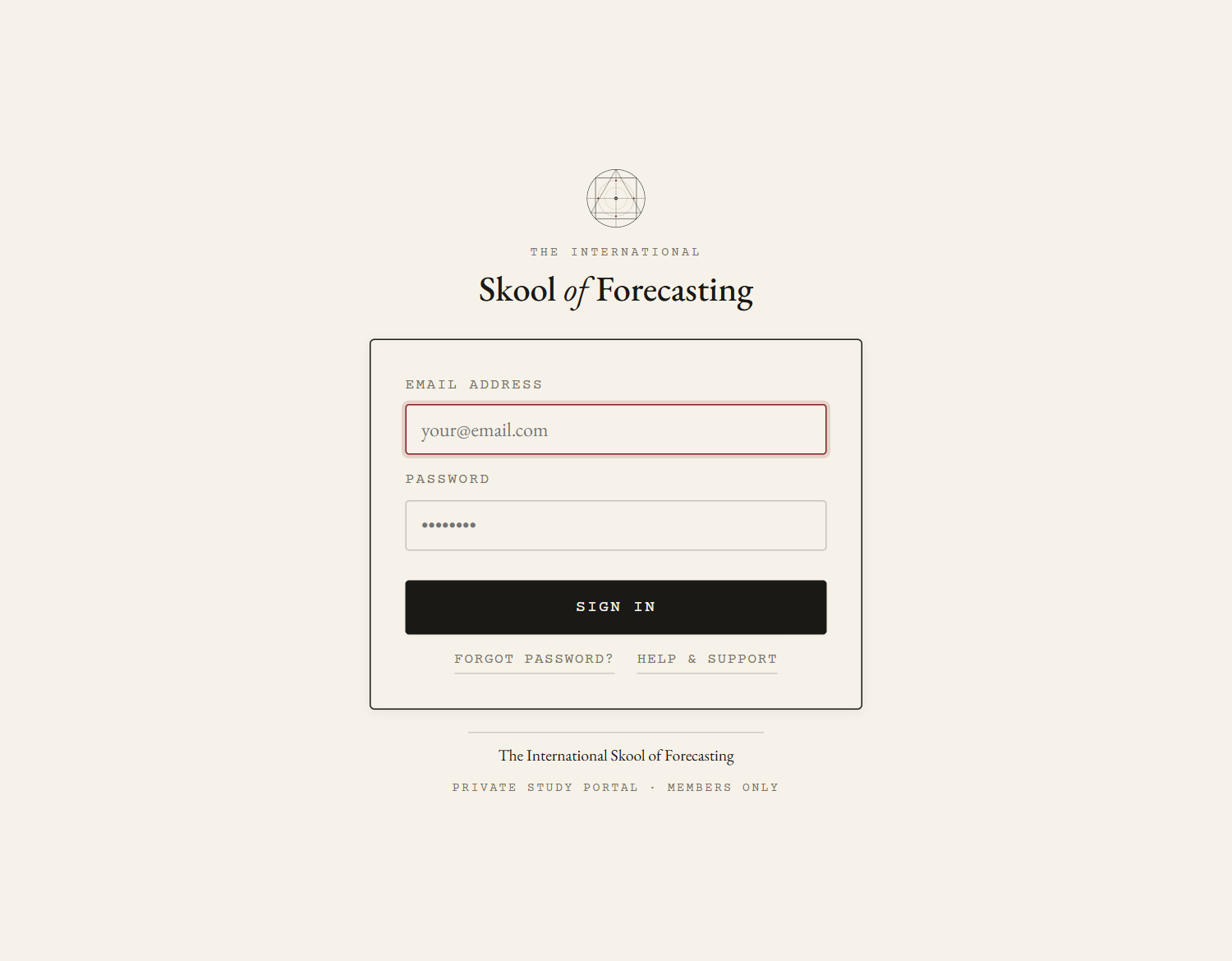
Sign in with your email and password at learn.skoolofforecasting.com/login.
The first time you use a new browser or device, you'll register it — each account is bound to up to 3 active devices for security:
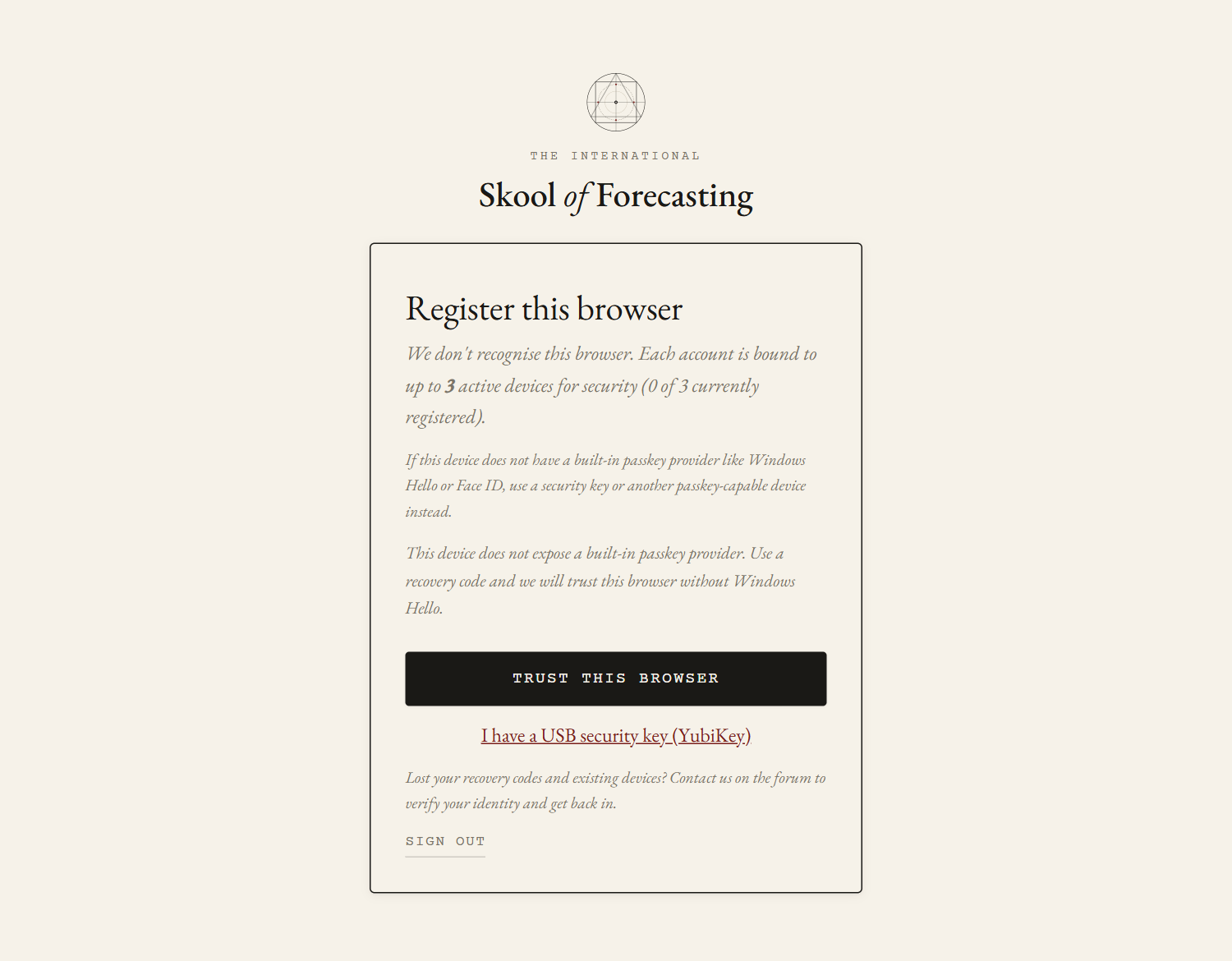
- Phones, tablets, and most laptops: your device offers its built-in passkey — Face ID, Touch ID, or Windows Hello. One tap and you're in.
- No passkey on the device? Use a USB security key, or enter one recovery code and we'll trust the browser without one.
- Registered a device you no longer use? Remove it under Account → Password & devices once you're signed in.
- Keep Safari / Chrome / Edge and your operating system current — passkeys work best on up-to-date software.
Forgot your password
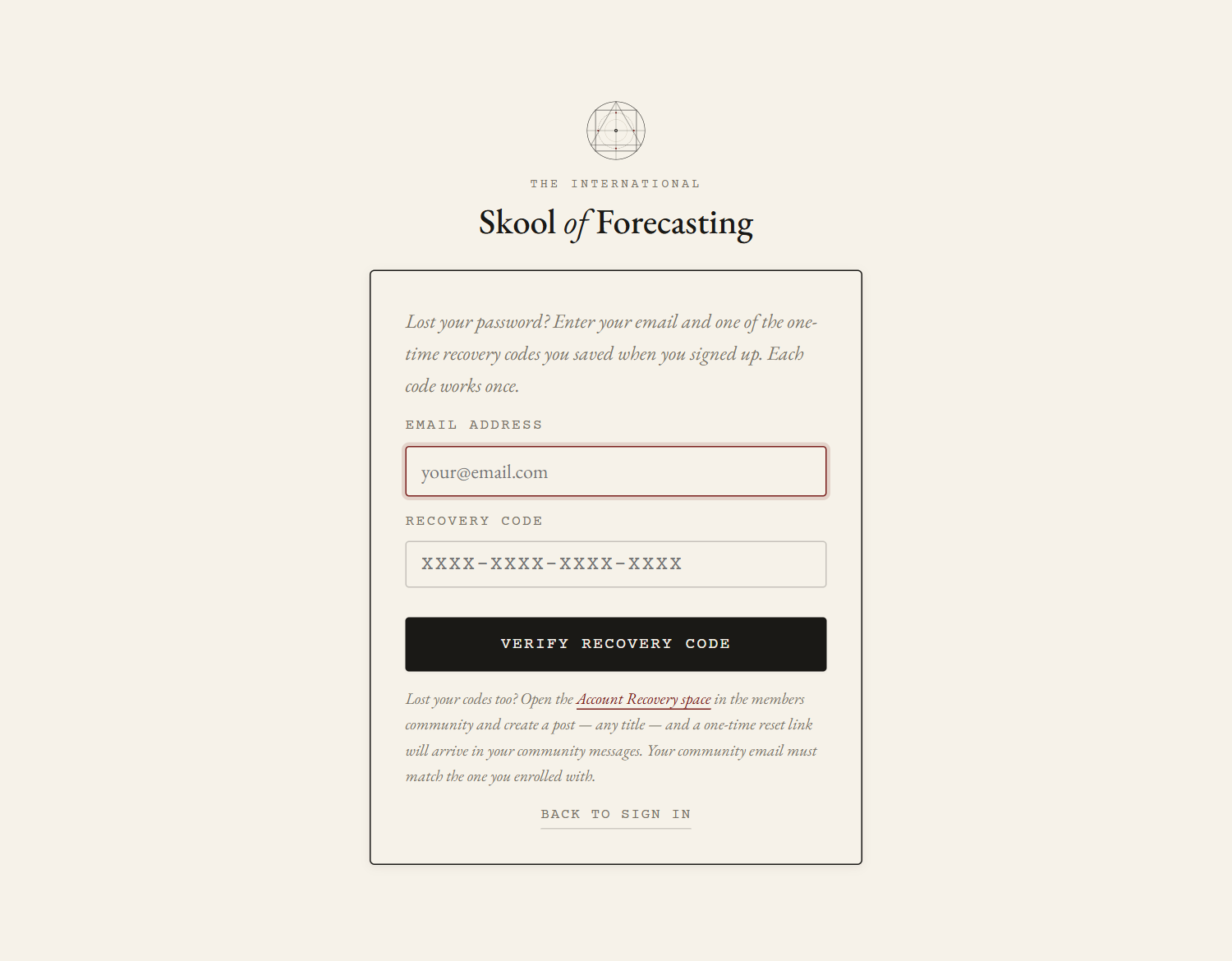
Go to Forgot password, enter your email and one of your recovery codes, and set a new password on the spot. The used code is burned — when you're back in, regenerate a fresh set under Account → Recovery codes.
Locked out completely
No password and no recovery codes? The members community can still get you back in — it takes about a minute and doesn't need anyone to be awake on our end:
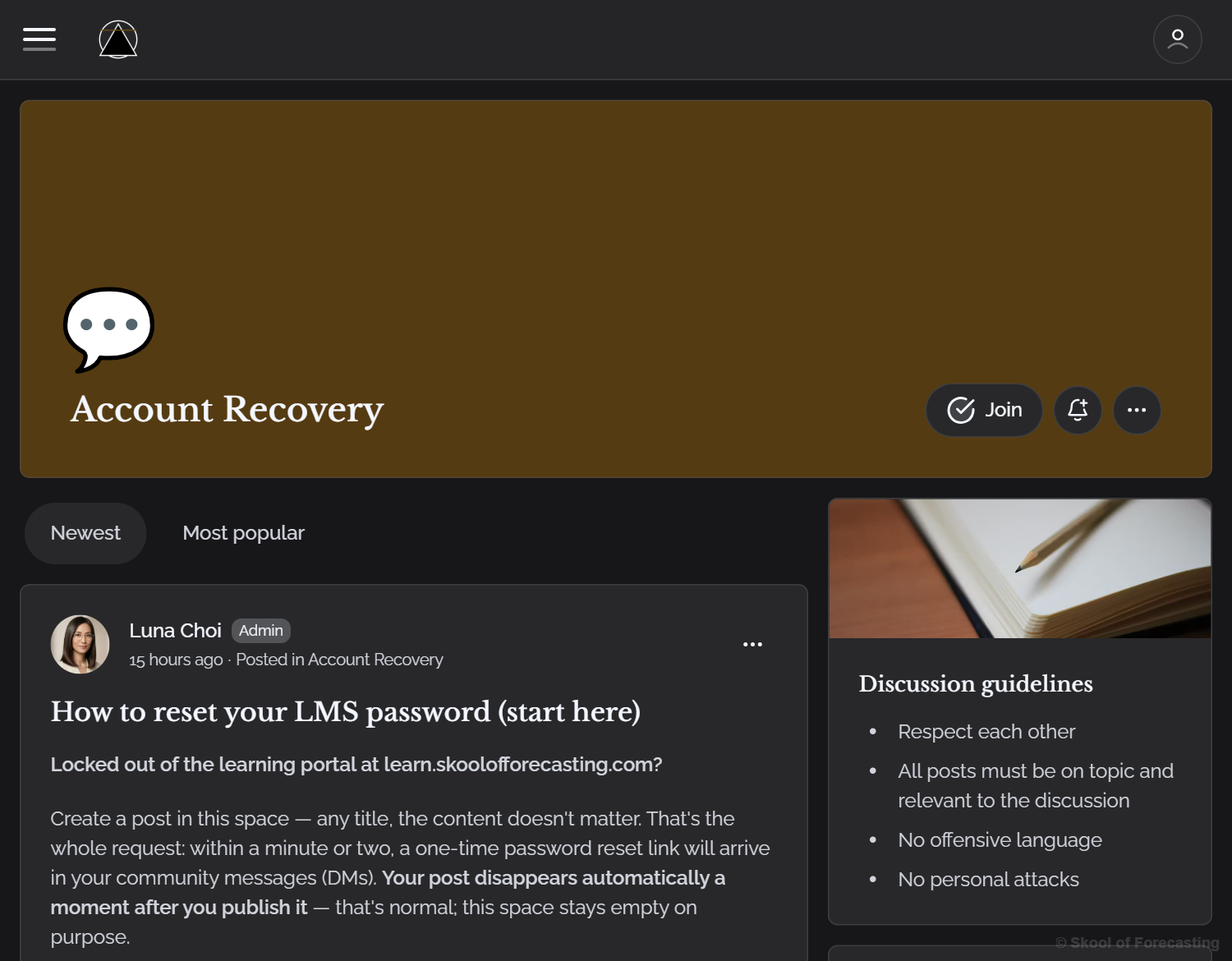
- Open the Account Recovery space in the members community.
- Create a post — any title, the content doesn't matter. The post itself is the request, and it disappears automatically a moment later. That's normal.
- Within a minute or two, a one-time reset link arrives in your community messages (DMs). It works once and expires in 2 hours.
- The match runs on your community email — it must be the same email you enrolled with. Different address? Update your community profile email first, then post again.
Nothing arrived, or your email situation is tangled? Message Luna in the community — she'll sort it with you or bring Jonathan in directly.
Watching lessons
Lessons use protected streaming — the player checks it's being watched normally inside the lesson page.
- Watch inside the lesson page; don't open the video frame in a separate tab.
- Video downloaders, recorder extensions, and stream-grabbing tools will stop playback — and can trigger a block of up to 12 hours. Remove the tool, wait, try again.
- Private browsing, aggressive privacy tools, VPN/private relay, and content blockers can stop the encrypted stream initialising. Use a normal window with extensions off for this site.
- Don't scrub rapidly through a protected video — let it load, then move through normally.
- If playback won't initialise, close the lesson tab, reopen the lesson from the course page, and try again.
Talking to a person
Support lives in the members community, not email.
- Message Luna — she's on the team, answers quickly, and handles most things on the spot: access questions, orientation, billing steps, where to find anything.
- Anything that needs the owner personally — refunds, payment plans, a tangled account — Luna brings Jonathan into the conversation directly.
- Signed-in members can also send feedback (ideas, bugs, gripes) straight from any page of this portal using the feedback tab — it goes on the list Jonathan reviews weekly.